Web Application and HTTP Basics
This tutorial introduces the basic web application and HTTP concepts that help when testing APIs. We will look at how browsers communicate with servers, how web pages are built from HTTP requests and responses, and why browser dev tools, headers, URLs, and status codes are useful evidence when investigating how a system behaves.
What is a Web Application?
- A web hosted HTTP accessed application with a GUI and possibly an API
Pretty much anything you access on the web, even a page that you just read the content of, is being served up by a Web Application.
An HTTP Server accepts a request from your browser, routes that request to find some content and render it to you.
But we tend to associate a "Web Application" with a page that you use to 'do' something, rather than just read content.
Examples of Web Applications
- etc.
This API Challenges application is a Web Application.
All the pages are generated by a server side application and shown in the Web Browser.
Web Applications which are more complicated, like the examples above, tend to have a front end (the page you see), and a back end (the code that does the work), and the front end communicates to the backend via HTTP requests.
Overview - Browser - Web Application
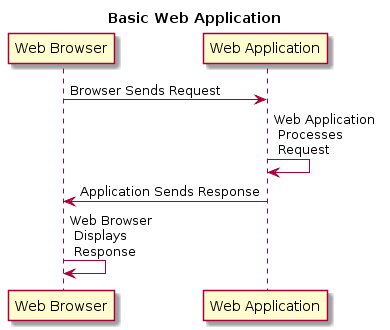
In the example above you can see a Web Browser makes a request to an application to receive data.
- A page includes an image, so a request is made to the HTTP server to get the image to render
- A page wants to render a list of 'posts', so a request is made to the applications that manages all the posts to get a list to display
Most of these requests are invisible to you, unless you open the browser dev tools and look at the Network tab. Then you'll see just how many requests are made to build a web page - CSS, images, javascript libraries, requests to retrieve content, requests to tell the server you've read the content. Reading the Network tab is a highly educational process.
Example - A Web Application
- Diagram showing browser making GET, POST requests to Server
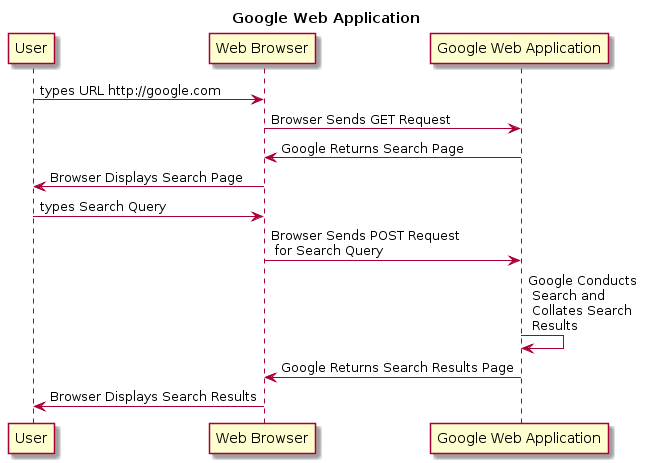
We've expanded the example here to show the User, because someone has to use the browser... not so true anymore now that AI can also use browsers... but then the AI would be the User, so 'something' is using a browser.
They type in a URL into the browser url input and that triggers a GET request to the web application.
The GET request means 'give me this resource' and the resource is identified by the URL. This is why URL is sometimes referred to as a URI (Uniform Resource Identifier).
HTTP Requests, deserve a response, so the server sends a response which is a message with some headers representing the status (did we find the resource? was the resource missing? was there an error processing the request or building the response?). And the content will contain the resource if it was found.
The browser then knows what to do with that response and most probably renders it on the screen.
There are different types of requests. Browsers mostly deal with GET requests to retrieve content, POST requests to send content to the server to process.
What is HTTP?
HTTP is the underlying protocol involved when sending requests to a server. Protocol just means a standard way to format, and respond to, the requests.
HTTP Requests
A request can be thought of as a simple text message with a standard format: e.g
GET https://apichallenges.eviltester.com/heartbeat HTTP/1.1
User-Agent: curl/7.39.0
Host: localhost:4567
Connection: Keep-Alive
accept: application/xml
To break this down, the first line has the verb, url and HTTP/1.1 is the protocol version being used:
GET https://apichallenges.eviltester.com/heartbeat HTTP/1.1
Each request has a verb or method to identify if the request is asking for information or sending information or a command to the server.
Then the rest of the example are the headers:
User-Agent: curl/7.39.0
Host: localhost:4567
Connection: Keep-Alive
accept: application/xml
Each header is on a new line an starts with the header name e.g. User-Agent followed by : so we recognise the end of the name, then the actual header content.
Headers allow us to send more information to the server that describes the message in more detail.
Requests verbs with no body:
GETto retrieve content - only contains the Verb (GET), a URL (e.g.https://apichallenges.eviltester.com) and some headers.HEADto retrieve headers only - often used to check if a resource exists.OPTIONSto ask the server what Verbs are valid to use on this URLDELETEthis is a command. We are telling the server toDELETEthe resource identified by the URL.
Obviously DELETE requires security and is an application specific verb. You can't just go around asking web sites to DELETE pages, the web server will not allow that. DELETE is used more in the context of a Web Application rather than just browser or using social media.
We also have request verbs with a body because we want to send content to the server to process - we put that in the body of the request.
POST- a generic verb used to supply data for processing, create something on the server, or amend something on the server.PUT- used to 'replace' something on the server with the provided contentPATCH- used to 'update' something on the server based on the contentQUERY- this retrieves information but the body contains additional filtering and ordering requests to find a subset of content
We cover all of this in more detail in the rest of the reference section e.g. HTTP Basics and HTTP Verbs
HTTP Responses
HTTP Requests, deserve a response.
The response is the message sent back from the server to the browser or tool that made the request.
Like a request, a response can be thought of as a simple text message with a standard format:
HTTP/1.1 200 OK
Content-Type: application/json
Content-Length: 25

{"message":"Hello World"}
The first line has the HTTP version, a status code, and a short reason phrase:
HTTP/1.1 200 OK
The status code tells us what happened. A 200 means the request was handled successfully. A 404 means the resource was not found. A 500 means the server had an internal error trying to process the request.
Then the response has headers:
Content-Type: application/json
Content-Length: 25
The headers describe the response in more detail. For example, Content-Type tells the browser or API tool how to interpret the body. text/html might be rendered as a web page, image/png might be displayed as an image, and application/json might be shown as data.
The response body is the content after the blank line. Sometimes the body is HTML for the browser to render. Sometimes it is JSON or XML data for JavaScript or an API client to process. And sometimes there is no body at all, for example a 204 No Content response.
For testing, the response is important evidence. We can check the status code, headers, and body to understand if the server did what we expected.
Example HTTP Request
HTTP Requests are often more complicated than the simple example above, and the browser or tool you are using to make requests often adds a lot of meta-data in the headers.
For example, use a browser to GET https://apichallenges.com/mirror/raw
And you'll see something like the request below:
Formatted for readability - headers are normally on one line.
GET https://apichallenges.com/mirror/raw HTTP/1.1

Sec-Ch-Ua: "Chromium";v="122", "Not(A:Brand";v="24", "Google Chrome";v="122"
Connect-Time: 0
Accept: text/html,
        application/xhtml+xml,
        application/xml;
        q=0.9,image/avif,
        image/webp,image/apng,
        */*;q=0.8,application/signed-exchange;
        v=b3;q=0.7
X-Request-Id: 018de744-6d5a-4c80-a696-dfb6e2ab73dd
Connection: close
User-Agent: Mozilla/5.0 (Windows NT 10.0; Win64;
            x64) AppleWebKit/537.36 (KHTML, like Gecko)
            Chrome/122.0.0.0 Safari/537.36
X-Forwarded-Proto: https
X-Request-Start: 1710798423231
Host: apichallenges.com
Accept-Encoding: gzip, deflate, br, zstd
X-Forwarded-Port: 443
It is worth looking up the headers to understand them e.g.
Headers with an "X-" are often custom headers added by the REST Client or Browser or Web Server.
Learn more about:
HTTP Requests - Human or System
-
Human Initiated
- user types URL into browser search bar (GET)
- user submits form (POST)
- user uses a tool to issue requests
-
System Initiated -System automatically polls server for new content via JavaScript
Humans 'do things' to a web site e.g. click a button, type in information.
Humans are often unaware that an HTTP Request has been triggered.
Humans often can't tell if a new piece of information on the screen for a web application was retrieved from the server, or if it was generated by JavaScript on the page.
The more we learn about web applications, the more we can understand how the systems that we use on a day to day basis function. This helps us spot risks, and helps us get out of trouble when the systems we use fail.
e.g.
- when you know about Cookies
- you'll often clear the cookies on a troublesome web application that isn't working
- you'll often use incognito mode to create a clean session
- when you know about HTTP headers
- you'll often change the USER-AGENT to see a different web page or interact with a web application differently
Summary
A Web Application is something we access through a browser, but behind the browser there are many HTTP requests and responses being sent between the client and the server.
The browser asks for resources with requests. The server answers with responses. Those responses include status codes, headers, and sometimes a body containing HTML, JSON, XML, images, or other content.
When we understand this basic request and response flow, we can use browser dev tools, API clients, proxies, and automation code more effectively. We can see what was sent, what came back, and where a problem might have happened.
This is the foundation for understanding APIs, testing Web Applications, and debugging the systems we use every day.